
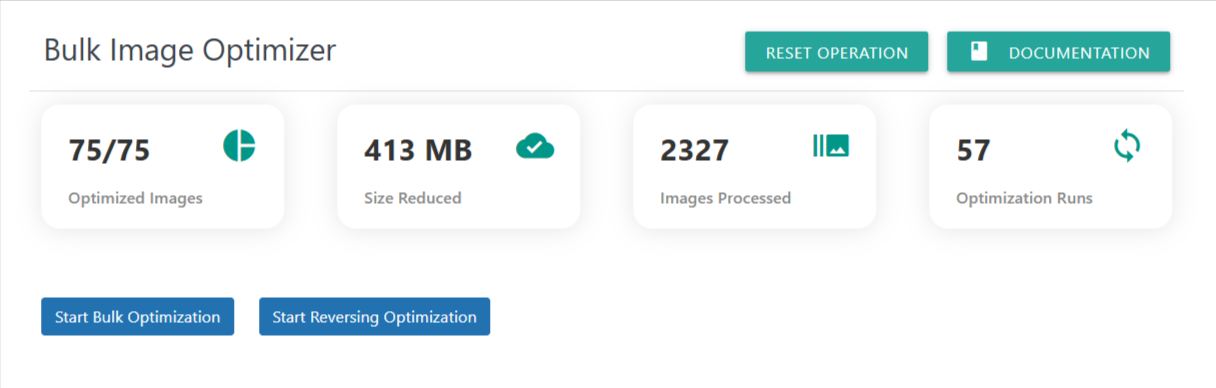
The Bulk Image Optimization dashboard provides a complete overview of your site-wide image optimization activity. This section allows you to optimize all images in bulk, reverse optimization if needed, track total size savings, and monitor processing cycles.
Optimizing images improves loading speed, reduces bandwidth usage, and enhances your Core Web Vitals—especially LCP (Largest Contentful Paint).
📊 Optimization Overview
The top section displays important statistics about your optimization progress:
1. Optimized Images (75/75)
Shows the count of images successfully optimized out of the total number detected.
75 → Images optimized
75 → Total available images
A full match means all images on your site are fully optimized.
2. Size Reduced (413 MB)
Indicates the total amount of disk space saved after optimizing images.
This value helps measure:
Storage reduction
Bandwidth improvements
Overall optimization success
3. Images Processed (2327)
Displays the total images processed during all optimization sessions.
This number includes:
Initial optimizations
Re-optimizations
Reversing operations
Regenerated thumbnails
Useful for monitoring plugin activity over time.
4. Optimization Runs (57)
Shows how many bulk optimization cycles have been executed.
A cycle may include:
Manual bulk optimization
Cron-based auto-runs
Re-optimization sessions
Reverse optimization cycles
Higher numbers indicate consistent background processing.
🛠 Action Buttons
RESET OPERATION
Resets the optimization engine and clears any active queues.
Use this when:
A previous job was interrupted
You changed image settings (quality, format, size)
You want to restart optimization
- There is any issue in completing current operation
This does NOT delete optimized files—only resets process tracking.
Start Bulk Optimization
Begins a complete image optimization cycle for all site images.
This process:
Scans all uploaded images
Converts photos to WebP/AVIF (based on settings)
Compresses and resizes images
Regenerates necessary thumbnails
Updates statistics live
Recommended when:
Running the plugin for the first time
After changing quality/format settings
After uploading a large batch of new images
Start Reversing Optimization
Restores optimized images back to their original state.
This feature:
Deletes WebP/AVIF versions
Restores original sizes and formats
Reverts thumbnail changes
Helps debug issues or reset site visuals
Use when:
Image quality issues occur
You’re switching to a new optimization plugin
You want original images for design consistency