
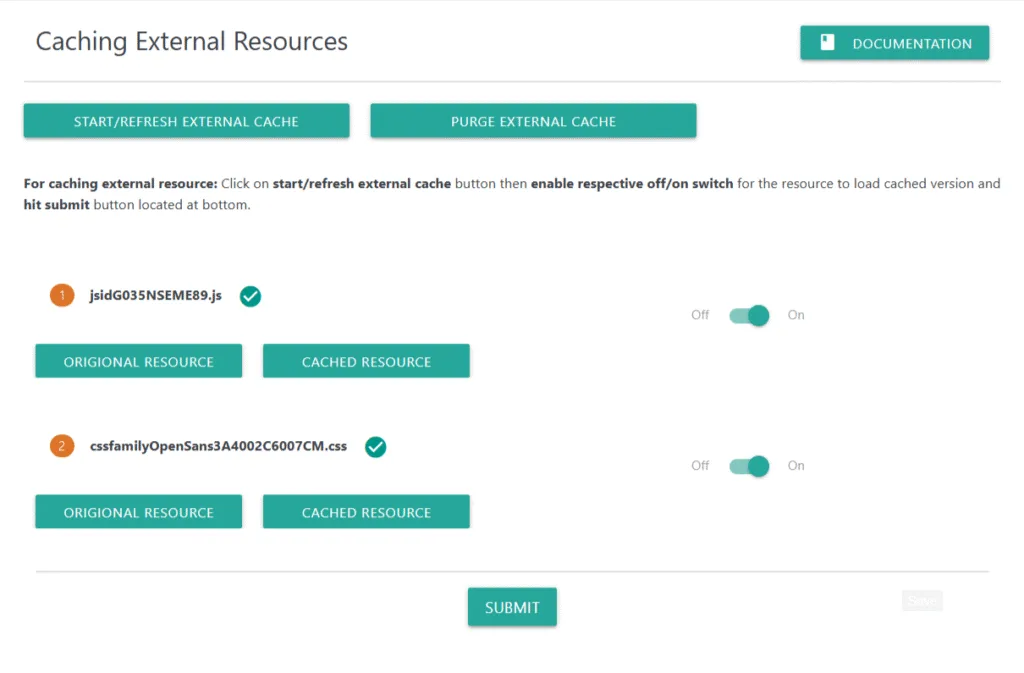
The Caching External Resources feature allows your website to locally cache third-party CSS and JavaScript files.
This helps improve performance, stability, and loading speed — especially when external CDN files load slowly or fail.
External resources may include:
Google Fonts CSS
External JS libraries
Third-party CSS files
Analytics scripts
Remote theme or plugin assets
This tool lets you download those files locally, serve them from your own server, and switch between original and cached versions as needed.
📌 Start / Refresh External Cache
Click START/REFRESH EXTERNAL CACHE to begin or update caching.
This will:
Detect all external resources used on your site
Download them into your site’s cache directory
Generate local versions for faster, more reliable delivery
Update files if the external source has changed
Use this whenever:
You install new plugins
Your theme loads new external assets
External files have been updated
📌 Purge External Cache
Click PURGE EXTERNAL CACHE to completely delete all previously cached external resources.
Use this when:
You want a fresh scan
Cached files are outdated
You changed your theme or major plugins
You want to reset all local copies
📌 How to Use External Resource Caching
After the plugin scans all external resources, each item will appear in the list along with:
Resource Name
✔ Status (cached successfully)
Original Resource button
Cached Resource button
On/Off Switch
On/Off Switch (Per Resource)
Toggle On → Loads the cached local version
Toggle Off → Loads the original external version
You decide which version to load for each resource.
📌 Resource Buttons Explained
ORIGINAL RESOURCE
Opens the external URL so you can preview the file being loaded from the third-party server.
CACHED RESOURCE
Opens the locally cached version stored on your server.
This helps verify if the content matches the external version.
📌 Item Indicators
Each resource is shown with:
A numbered label (1, 2, 3…)
A green checkmark indicating successful caching
Toggle switch to enable or disable the cached version
If caching fails, the status icon would notify you.
📌 Submit Changes
After enabling or disabling cached versions of each external resource, click SUBMIT at the bottom.
This saves your caching preferences and applies them to your website.