
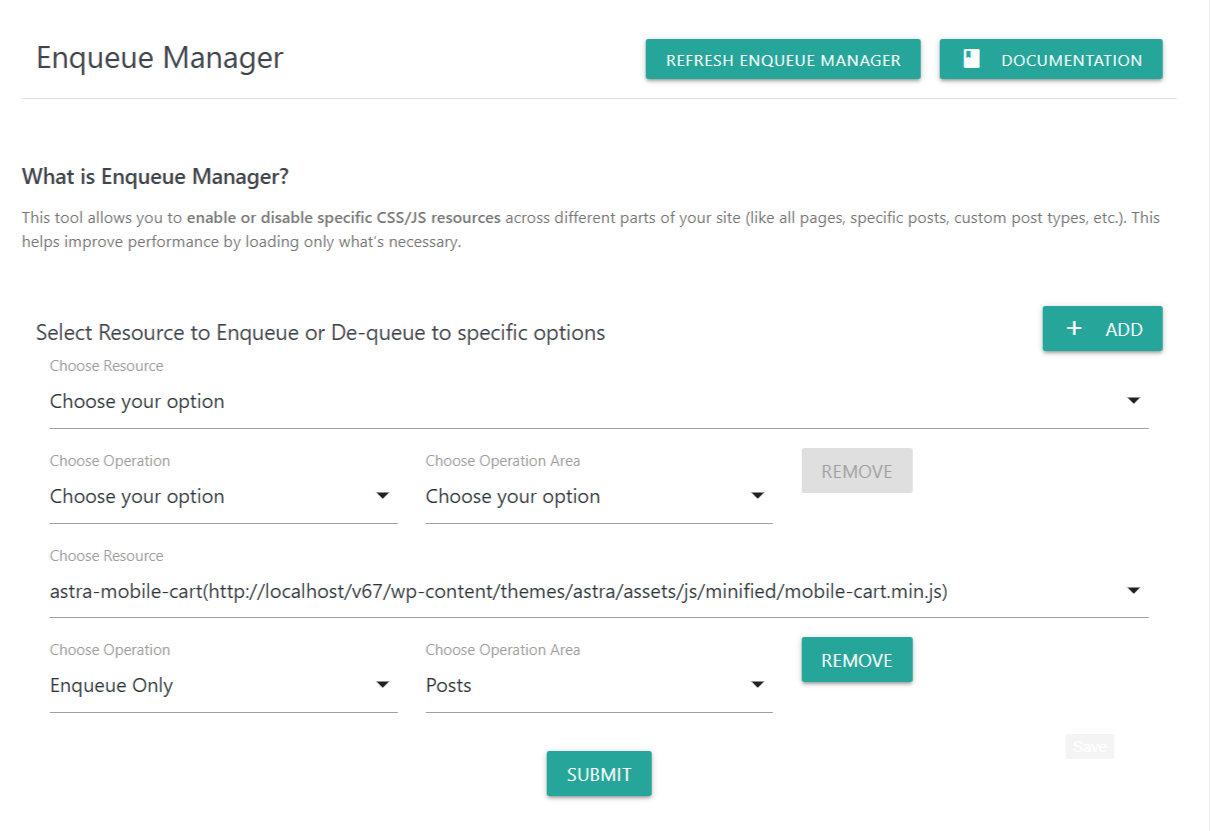
The Enqueue Manager gives you full control over which CSS and JavaScript files load on different parts of your website. This allows you to improve site performance by removing unnecessary assets and loading files only where they are actually required.
📌 What is Enqueue Manager?
The Enqueue Manager allows you to:
Enable or disable specific CSS/JS resources
Apply rules to all pages, only posts, only pages, specific custom post types, or other defined areas
Prevent unwanted scripts or styles from slowing down your site
Optimize loading behavior based on conditions you choose
This tool helps you eliminate unused resources and reduce page weight, improving overall performance and speeding up rendering.
📌 Refresh Enqueue Manager
Use the Refresh Enqueue Manager button to:
Re-scan your website for all active CSS/JS resources
Load newly detected assets added by plugins, themes, or page builders
Ensure the list of available resources is always accurate and up-to-date
Use this after installing a new plugin or modifying theme files.
📌 Select Resource to Enqueue or Dequeue
This section allows you to create detailed rules for resource loading.
Choose Resource
Select from the list of detected CSS or JS assets.
Examples:
astra-mobile-cart.jsglobal-styles.cssPlugin styles and scripts
Theme assets
The dropdown automatically lists all registered assets found during the scan.
📌 Choose Operation
Controls what to do with the selected resource:
Enqueue Only – Force-load the resource only specified areas
Dequeue Only – Remove the resource only specified areas
Choose the operation based on how you want the resource to behave.
📌 Choose Operation Area
Applies your operation to the desired section of your site. Options may include:
Everywhere
- Posts
Pages
Custom Post Types
Specific Posts/Pages (Provide comma separated Id list)
Example:
Enqueue astra-mobile-cart.min.js only on Posts.
📌 Add / Remove Rules
Add Rule
Click ADD to insert a new enqueue/dequeue rule. This allows you to create multiple conditions at once.
Remove Rule
Use the REMOVE button to delete a specific rule you no longer need.
Every rule is independent, allowing you to micro-optimize your website’s asset loading.
📌 Submit Button
After configuring your rules:
Click SUBMIT to save all enqueue/dequeue settings
The plugin immediately applies the loading logic to your website
You can return anytime to add, modify, or remove rules