
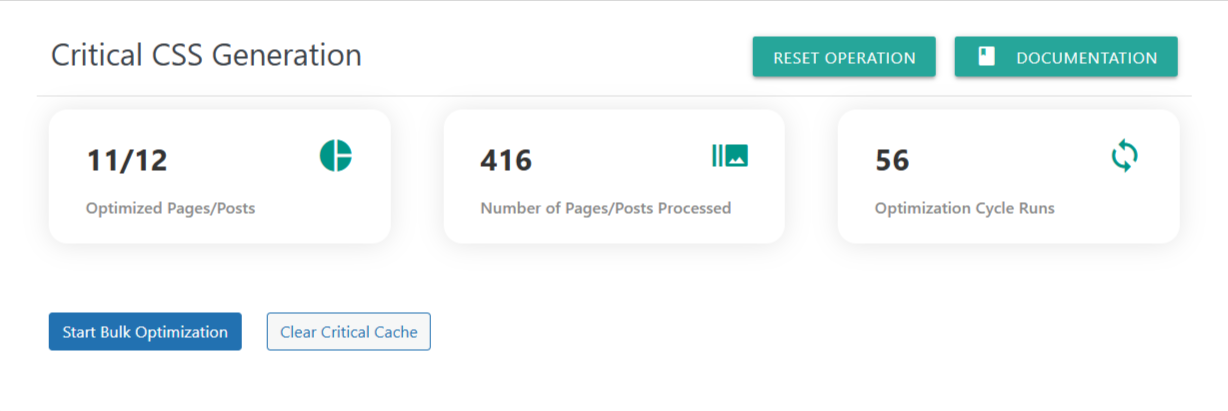
The Bulk Critical CSS Generation dashboard provides a complete overview of your site’s critical CSS processing status. This screen helps you monitor progress, run optimizations in bulk, clear previously generated critical CSS, and reset the generation cycle when needed.
Critical CSS extraction improves performance by generating CSS required for above-the-fold content, resulting in faster rendering and better LCP scores.
📊 Dashboard Statistics
1. Optimized Pages/Posts (11/12)
Shows how many pages or posts have successfully generated Critical CSS.
11 → Number of pages/posts optimized
12 → Total available pages/posts eligible for optimization
This indicator helps you understand how much of your site is fully optimized and what still needs attention.
2. Number of Pages/Posts Processed (416)
Displays the total amount of processing operations performed so far.
This count includes:
Successful optimizations
Retries
Regeneration cycles
Processing of updated or newly added pages
Useful for understanding workload and verifying that background jobs are running correctly.
3. Optimization Cycle Runs (56)
Indicates how many scheduled or manual optimization cycles have occurred.
A cycle may include:
Cron-based regeneration
Bulk optimization sessions
Auto-refresh events
Higher numbers show consistent automated activity, ensuring your CSS remains fresh as content changes.
🔧 Action Buttons
📌 RESET OPERATION
Clears all current processing queues and resets the optimization engine.
Use this if:
A previous run was interrupted
You changed plugin settings
You added new pages and want to restart processing cleanly
You notice inconsistent generation and want to reset operation
Resetting does not delete generated CSS—only resets the internal counters and queue.
🚀 Bulk Operation Controls
Start Bulk Optimization
Triggers the critical CSS engine to generate CSS for all eligible pages and posts.
The system will:
Scan all public URLs
Generate desktop CSS
Generate mobile CSS (if enabled)
Store processed CSS files
Update stats in real-time
Best used when:
Running optimization for the first time
After major design/theme changes
After enabling mobile critical CSS
Post-migration or re-build
Clear Critical Cache
Deletes all previously generated critical CSS files.
This forces a fresh regeneration the next time optimization runs.
Use this when:
Your layout has changed significantly
You updated fonts, headers, or theme styling
You see outdated design being applied
You switched themes