
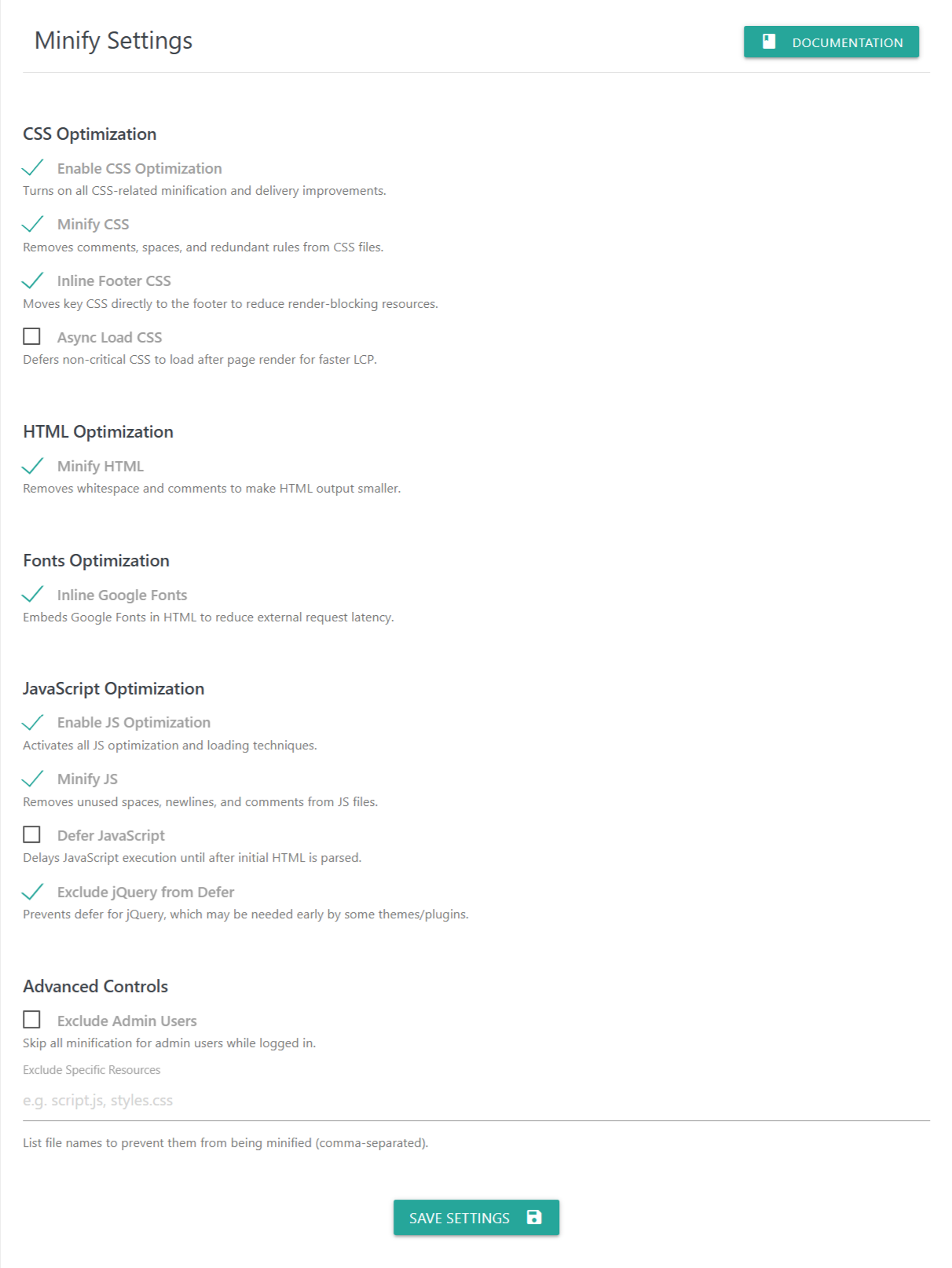
The Minify Settings panel allows you to optimize CSS, JavaScript, HTML, and Google Fonts to reduce file size, improve delivery time, and boost overall page performance. Minification removes unnecessary characters such as whitespace, comments, and unused code—resulting in faster loading pages and better Core Web Vitals.
🟩 CSS Optimization
Enable CSS Optimization
Turns on global CSS optimization features.
This is required to enable any CSS-related minification or enhancements.
Minify CSS
Removes:
Comments
Whitespaces
Redundant rules
This produces smaller CSS files, improving load time and reducing render delays.
Inline Footer CSS
Moves critical or important CSS to the footer to help reduce render-blocking styles in the head.
Useful for improving First Contentful Paint (FCP) and Largest Contentful Paint (LCP).
Async Load CSS
Defers non-critical CSS files, loading them only after the page starts rendering.
This speeds up page display and helps with performance scoring.
🟩 HTML Optimization
Minify HTML
Removes:
Extra whitespace
HTML comments
Results in faster HTML delivery and smaller page output size.
🟩 Fonts Optimization
Inline Google Fonts
Embeds Google Fonts directly into the HTML document.
This reduces external network requests and prevents FOIT/FOUT (Flash of Invisible/Unstyled Text).
Helpful when improving font loading performance and removing Google CDN latency.
🟩 JavaScript Optimization
Enable JS Optimization
Enables all available JavaScript-related optimization and performance enhancements.
Minify JS
Strips unnecessary characters from JS files including:
Whitespace
Newlines
Comments
Produces lighter JS files for improved load performance.
Defer JavaScript
Delays JavaScript execution until after the initial HTML is parsed.
Improves:
Initial load speed
Rendering time
Core Web Vitals
Exclude jQuery from Defer
Some themes or plugins rely on jQuery running early.
Enable this option to:
Ensure jQuery loads normally
Prevent layout or script breakage
Maintain compatibility with older themes or plugins
🛠 Advanced Controls
Exclude Admin Users
When enabled:
Logged-in administrators bypass minification
Ensures compatibility while editing or debugging
Avoids caching/minification conflicts while building pages
Exclude Specific Resources
Enter filenames (comma-separated) to prevent them from being minified.
Example:
script.js, styles.css
Use this when:
Specific assets break after minification
You want full control over which resources stay untouched
💾 Save Settings
Click Save Settings to apply your configurations.
All optimization rules take effect immediately, improving load speed and site performance.