
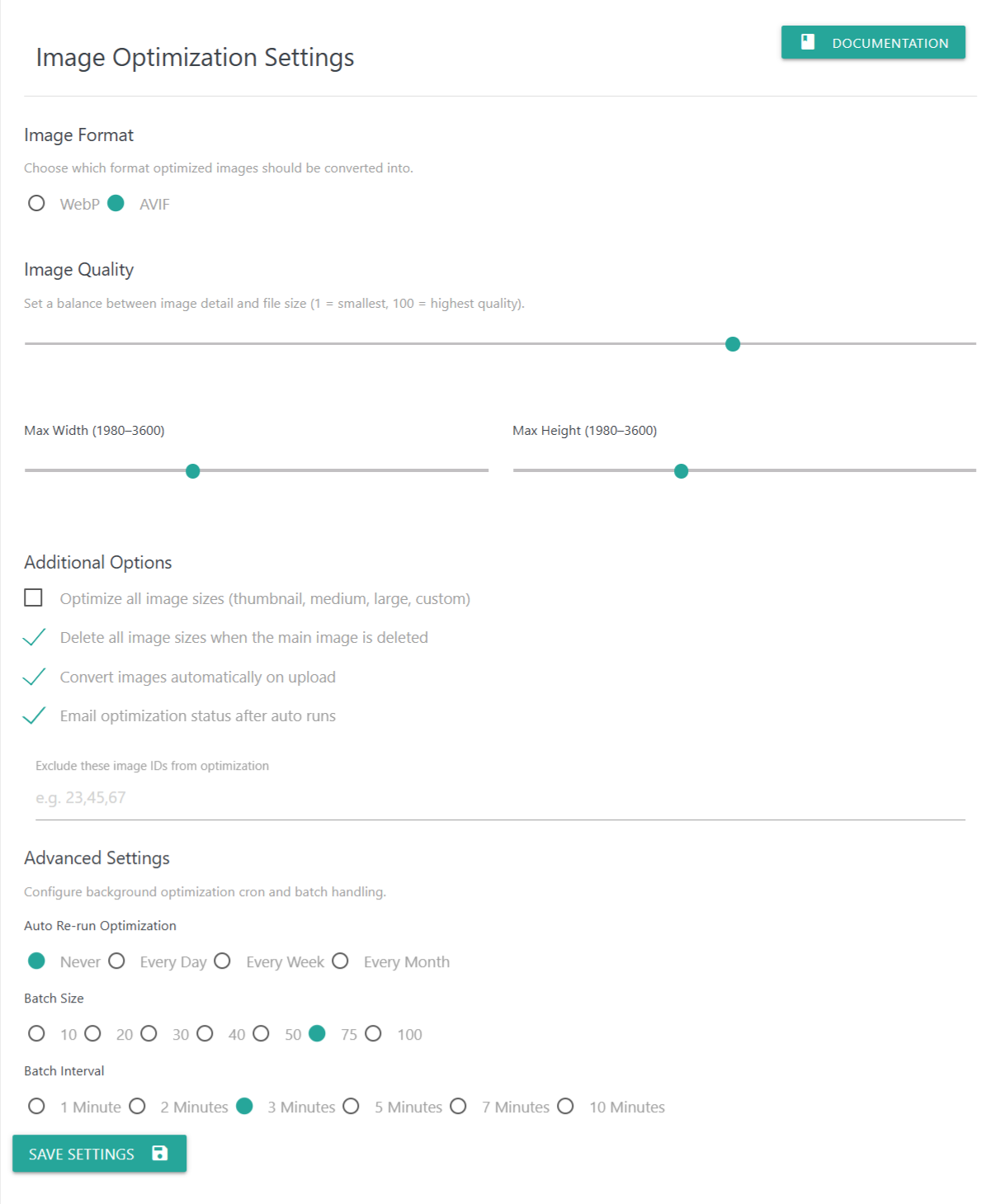
The Image Optimization module helps reduce image size, improve loading performance, and automate image handling across your entire website. These settings allow complete control over conversion formats, quality levels, resizing limits, automation behavior, and background optimization tasks.
📸 Image Format
Choose which optimized format your images will be converted into:
WebP
Excellent compression
Widely supported across browsers
Great balance of quality and file size
AVIF
Newer, more efficient format
Smaller file sizes compared to WebP
Superior quality retention
Best for high-performance optimization
Select the format based on your browser support needs and performance goals.
🎚 Image Quality
This slider lets you set how compressed your converted images should be.
1 = smallest file size (lowest quality)
100 = highest quality (largest file size)
Recommended:
70–85 for general use
90–100 for photography or high-detail images
📏 Max Width & Max Height
Set the maximum dimensions (in pixels) allowed for optimized images.
Helps prevent oversized images from slowing loading times
Automatically resizes large uploads
Useful for photographers, eCommerce stores, and media-heavy sites
Typical settings:
1980px–2560px width for large screens
1200px–1600px height for portrait content
Anything larger will be scaled down.
🔧 Additional Options
Optimize all image sizes
Optimizes every generated WordPress size:
Thumbnail
Medium
Large
Custom sizes (theme or plugin-generated)
Useful for fully optimized galleries and responsive images.
Delete all image sizes when the main image is deleted
When the main image is removed from Media Library:
All resized and converted versions will also be deleted
Keeps Media Library clean
Saves server storage
Convert images automatically on upload
Automatically converts images to WebP/AVIF the moment you upload them.
This setting:
Improves automation
Ensures consistent optimization
Great for content creators uploading frequently
Email optimization status after auto runs
Sends a summary email each time the background optimization cron job finishes.
Best for:
Site administrators
Tracking batch progress
Monitoring large optimization jobs
Exclude image IDs from optimization
Allows you to skip specific images from being converted or resized.
Enter IDs separated by commas:
23,45,67
Useful for:
Logos
UI icons
Images requiring original resolution
⚙️ Advanced Settings
Configure background optimization behavior, batch size, and automatic reruns.
Auto Re-run Optimization
Automatically runs the image optimizer again based on the selected schedule:
Never
Every Day
Every Week
Every Month
Helps maintain optimization as new images are uploaded.
Batch Size
Controls how many images are processed per cycle during background optimization.
Options:
10, 20, 30, 40, 50, 75, 100
Larger batch sizes = faster processing but higher server usage.
Choose based on your hosting power.
Recommended:
Shared hosting → 10–30
VPS / Dedicated hosting → 50–100
Batch Interval
Time gap between each batch processing cycle:
1 Minute
2 Minutes
3 Minutes
5 Minutes
7 Minutes
10 Minutes
Shorter intervals process images faster but may load the server more.
💾 Save Settings
Click Save Settings to apply your updates.
All optimization rules, automation settings, and batch configurations take effect immediately.